7.7. Oblique Reslicing
In this section we describe how to use the oblique reslicing feature to rotate the slice planes off of the standard axes.
By default, the Quad View module operates in axis-aligned mode, where the three slice planes are locked to the X, Y, and Z axes. This ensures that Windows 2–4 always show true orthogonal cross-sections of the data.
The Oblique Reslice feature allows the slice planes to be freely rotated to arbitrary angles, enabling the user to cut through the data along any orientation. This is useful for examining features that are not aligned with the standard axes.
Axis-Aligned Mode (Default)
In axis-aligned mode (the default), the slice planes cannot be rotated. The crosshair axis lines in Windows 2–4 can still be dragged to reposition the planes along their respective axes, but no rotation is possible.
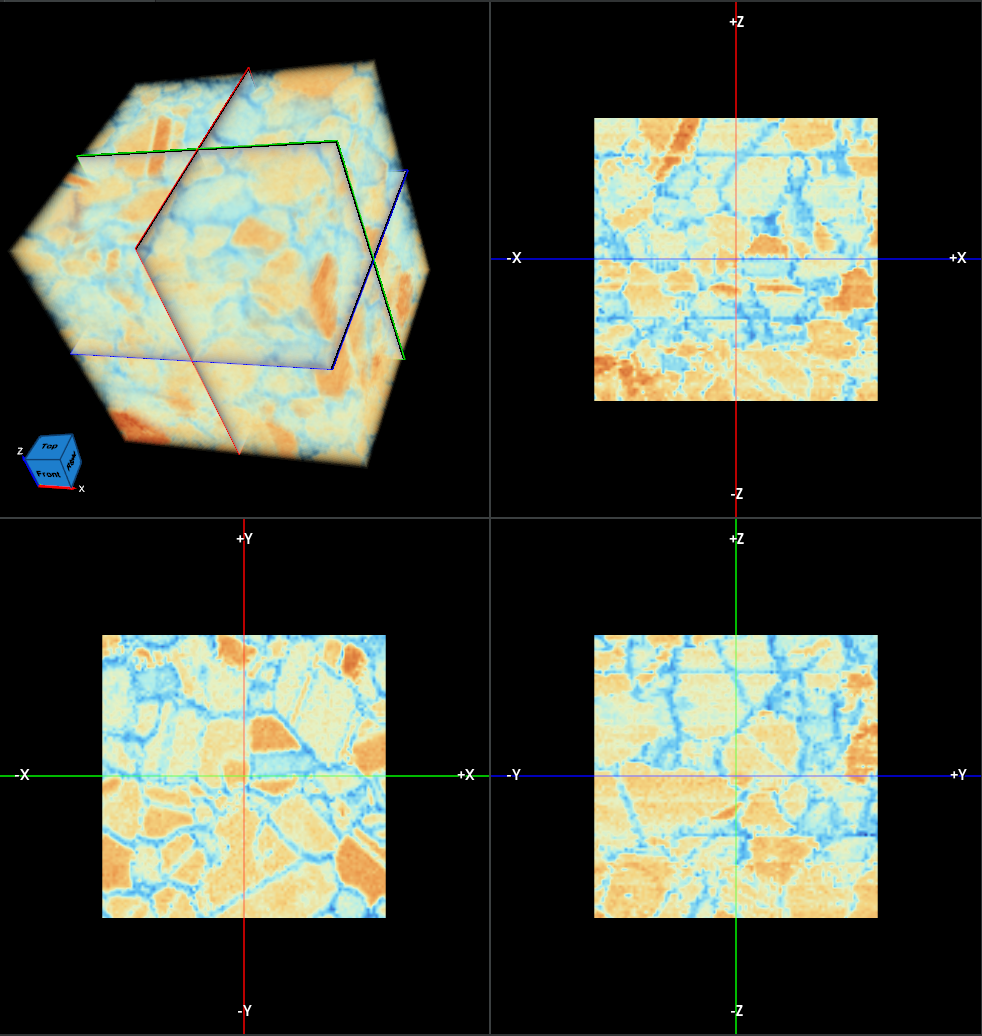
Figure 7.38 Axis-Aligned Mode — Planes Are Locked to the Standard Axes
Enabling Oblique Reslice Mode
To enable free rotation of the slice planes, check the Oblique Reslice checkbox in the Controls Panel on the right side of the Quad View module.
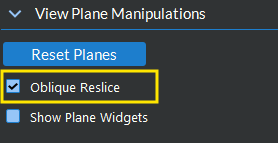
Figure 7.39 Oblique Reslice Checkbox in the Controls Panel
Rotating a Slice Plane
In oblique mode, rotating a slice plane is performed using rotation arrow controls that appear in Windows 2–4. These controls are designed so that clicking on an axis line always translates (moves) the plane, and rotation is only available through the dedicated arrows.
To rotate a plane:
Hover the mouse cursor over one of the two axis lines in any of Windows 2–4. Two black triangular rotation arrows (outlined in white) will appear — one on each side of the axis line at approximately the 1/3 and 2/3 positions along the line.
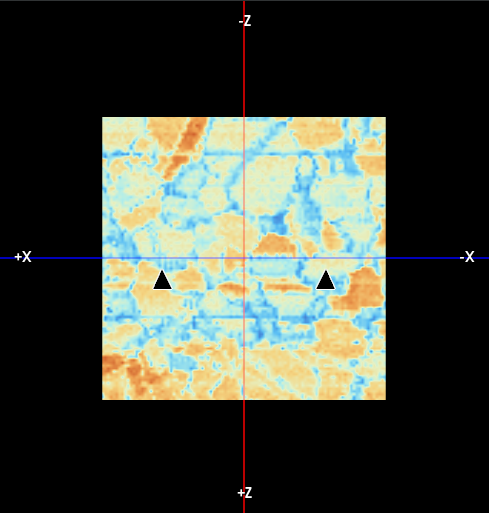
Figure 7.40 Rotation Arrows Appear When Hovering Over an Axis Line in Oblique Mode
Click and drag one of the arrows to rotate the plane associated with that axis line. The plane rotates around the axis perpendicular to the view as you drag.
Release the mouse button to set the new plane orientation.
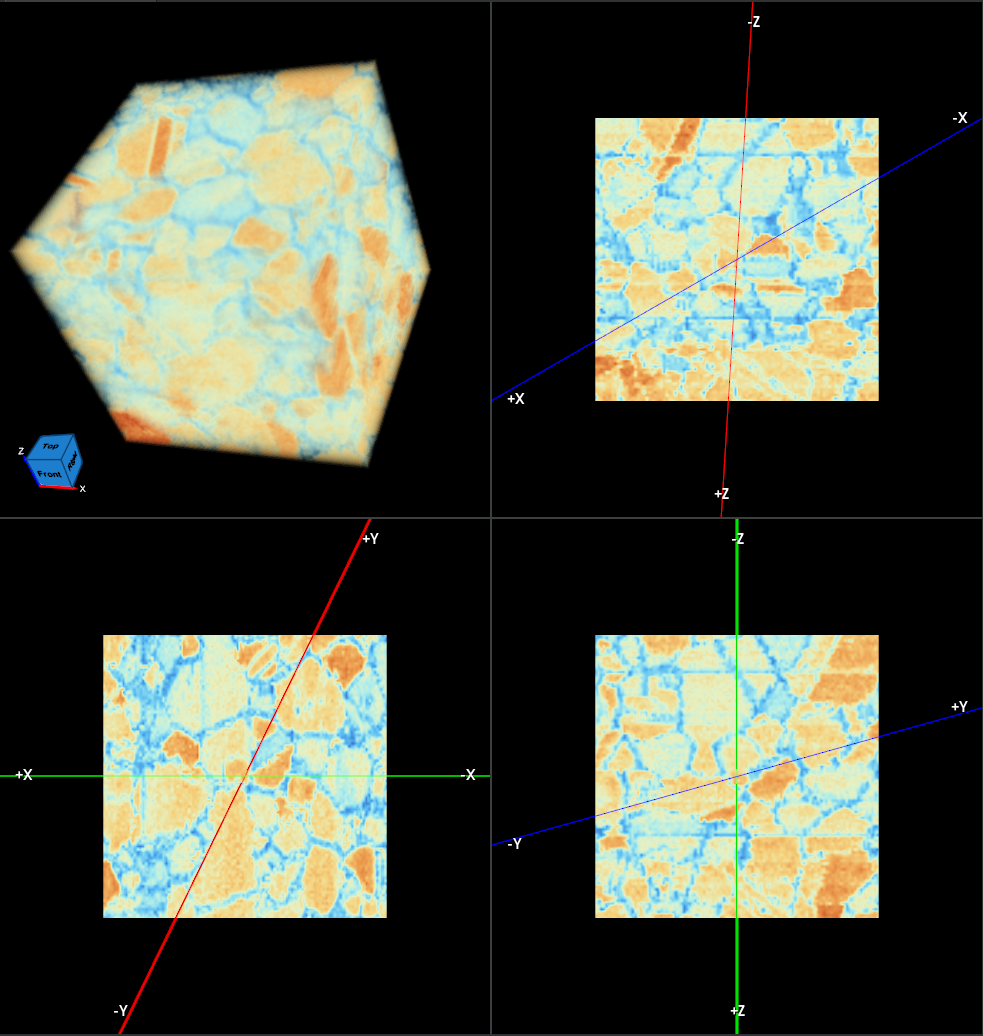
Figure 7.41 The Slice Planes Rotated to an Oblique Angle
The rotation angles are reflected in real time in the Yaw, Pitch, and Roll fields of the text annotation overlay (if annotations are enabled) and in the plane positions visible in the 3D volume rendering in Window 1.
Returning to Axis-Aligned Mode
To return the slice planes to the standard axis-aligned orientation, uncheck the Oblique Reslice checkbox. The rotation arrows will disappear and all rotation interaction will be blocked. The planes themselves retain their current orientation until they are explicitly repositioned by dragging an axis line.
Note
Rotation angles are saved as part of the Quad View state file.